The platform guide: how to create an account and upload your project
Login
To log in to https://creativecity.academy, click the «Log In» button in the top-right corner of the page.
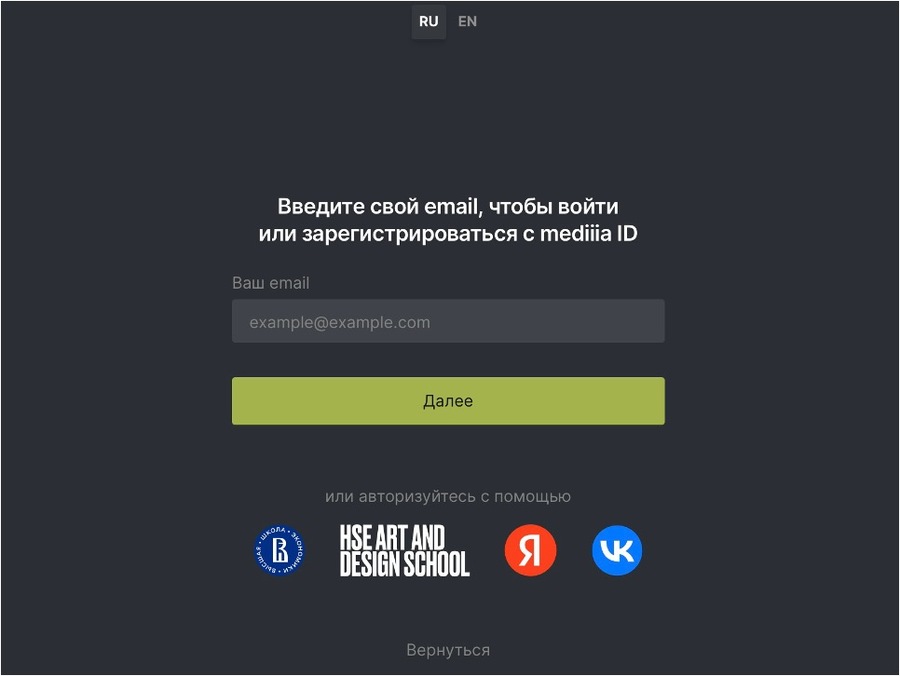
If you already have an account, enter your username, and the platform will ask for your password. If you don’t have an account yet, enter your email and click Continue. You’ll then be prompted to complete your profile.
Users can log in using their personal HSE account. If you’re a student, faculty member, or staff of the HSE Art and Design School, use your student portfolio or Timetracker credentials. You can also sign in via Yandex or the VK app. By doing so, you’ll join the Mediiia community and get access to all the platforms in the ecosystem.

Creating a project
To create a project, click the «Add Project» button in the top right corner. Enter a title, select the location and geotag (city) for your project, add relevant tags, and upload a cover image. You can set your project’s visibility—public or link-only—and choose to make it bilingual.
Adding a block
You can choose the type of block you want to add: — Add text (large or small). — Add illustrations (jpg, png, or gif). — Add a two-image tile, a card, a slider, or a project/presentation. — Embed video from YouTube or VK, and audio from SoundCloud, Bandcamp, or Mubert using the icons in the bottom left corner. — You can also attach products or a link. To save your text, image, or video, click the «Save» button in the block’s bottom toolbar.
When you add an image block, you can place a caption above, below, centered, or right under the image. See the example below.
Click the pencil icon to edit and the trash icon to delete blocks.
You can set your project’s style—wide, simple, or with shadows—using the icons on the top toolbar.
Adding Tags
Click «Select Tags» next to the «Required Tag» and «Tags» fields to choose the tags you need.
The platform won’t let you publish a project without a «Required Tag.» These tags are organized into categories, visible in the list on the left.
You can select a suitable category or use the tag search. Only one tag can be chosen under «Required Tag.»
The «Tags» section lets you add multiple tags to give your project more detailed context.
If your project is linked to a city, it’s recommended to add a tag for that city. You can also add or create a custom «Location» tag.
To create your own location tag, click «Create Location» and enter the name in both Russian and English — city, district, village, settlement, or any place you want to add. Enter the «point» — either coordinates or an address. A map will automatically appear on the left. Drag the marker on the map to pinpoint the exact spot, then hit «Save.»
If you click «Select Cities,» a search menu and a list of cities available on the platform will appear. Choose the city where your created location/point is located.
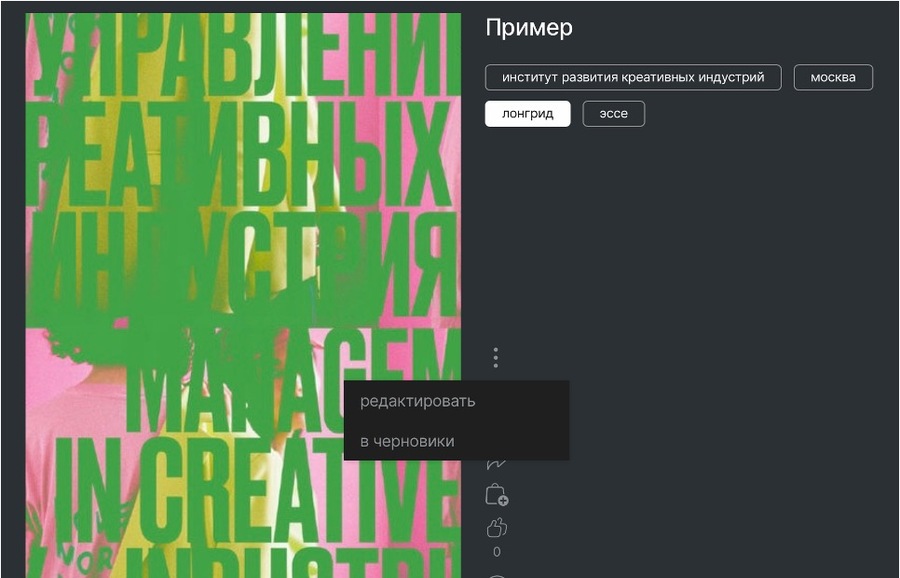
After adding tags, you can save your project. Once saved, you’ll be able to move it to Drafts or edit it anytime.
Entering a Competition
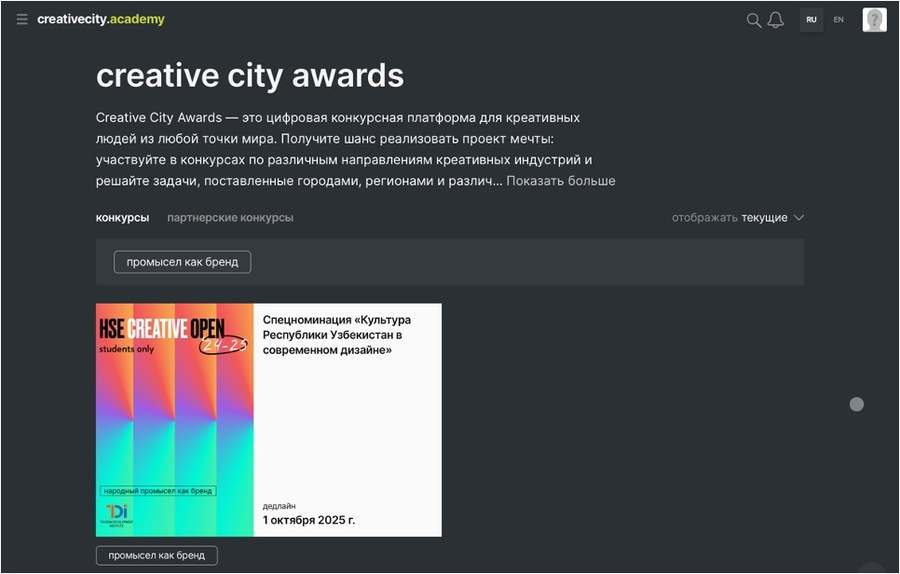
To submit a project to a competition, click the hamburger menu in the top left corner of the homepage.
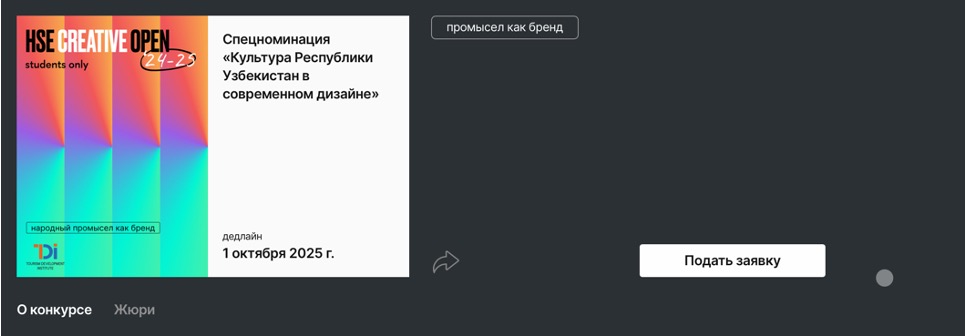
From the menu, go to the Contests page. Choose the contest you’re interested in, click Submit Project, and upload your work from your portfolio. If your project was created specifically for a contest, make sure to add the relevant tags—they’re listed in the contest description.